I once helped a student clean up her computer and ended up freeing more than 100 GB of storage. Most of that space actually came from using WizTree to identify and remove large virtual machine files, but the result was dramatic enough that more people started asking for help with their own drives.


Rather than repeating the same cleanup over and over, it makes more sense to explain the approach. In practice, I usually go in this order: start with Windows’ built-in cleanup options, move on to a few third-party tools, then use WizTree for manual inspection if the usual methods do not recover much space. If needed, I finish with CompactGUI for compression.
Start with manual cleanup
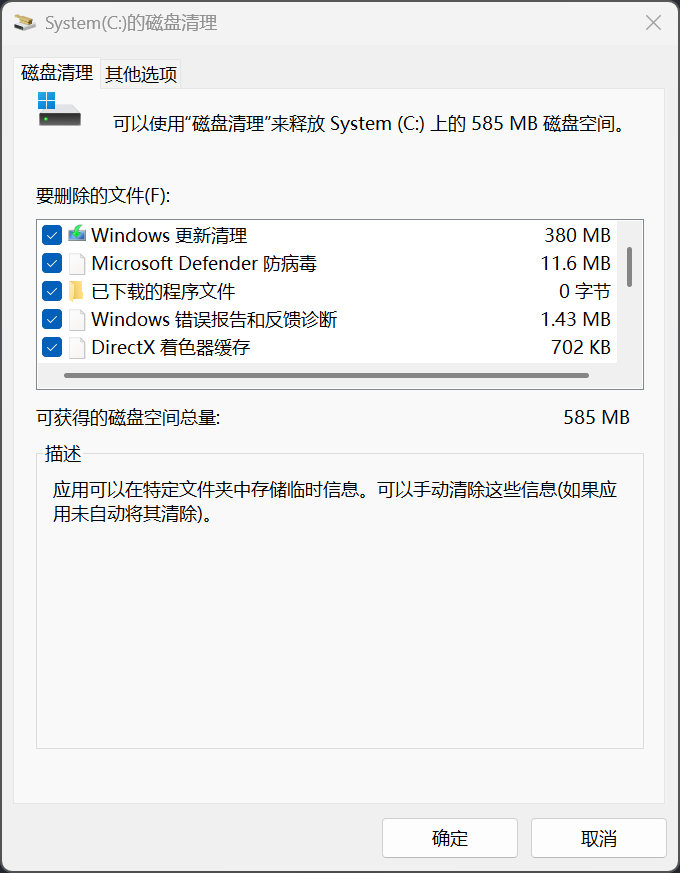
Use Windows Disk Cleanup
Press WIN + R, type cleanmgr.exe, and press Enter to open the built-in cleanup tool. Select the categories you want to remove and confirm. This is the quickest way to clear common system junk files.
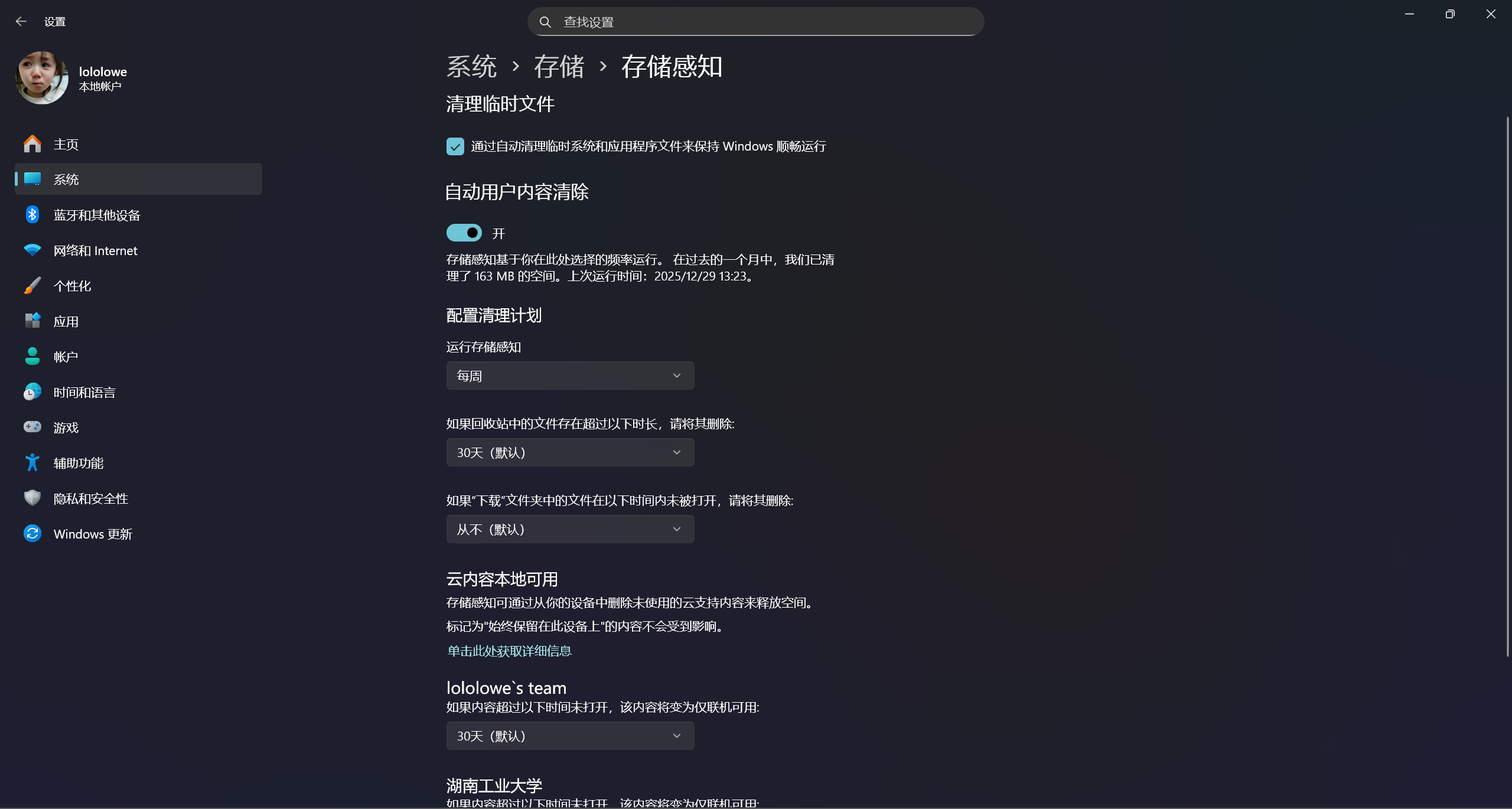
Turn on Storage Sense
Press WIN + I, then go to System > Storage > Storage Sense and enable it. Once turned on, Windows can clean temporary and unnecessary system files on a regular basis without much manual effort.
Disable hibernation if you do not need it
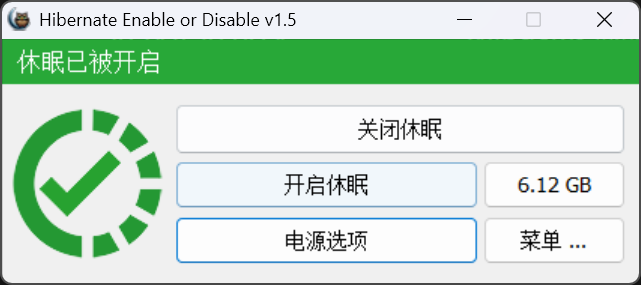
Hibernation is similar to sleep, but instead of keeping the session in memory, Windows writes the current system state to disk and fully powers off the machine. When the PC starts again, it restores the previous working state quickly, which is useful if you need to preserve your session for a long time.
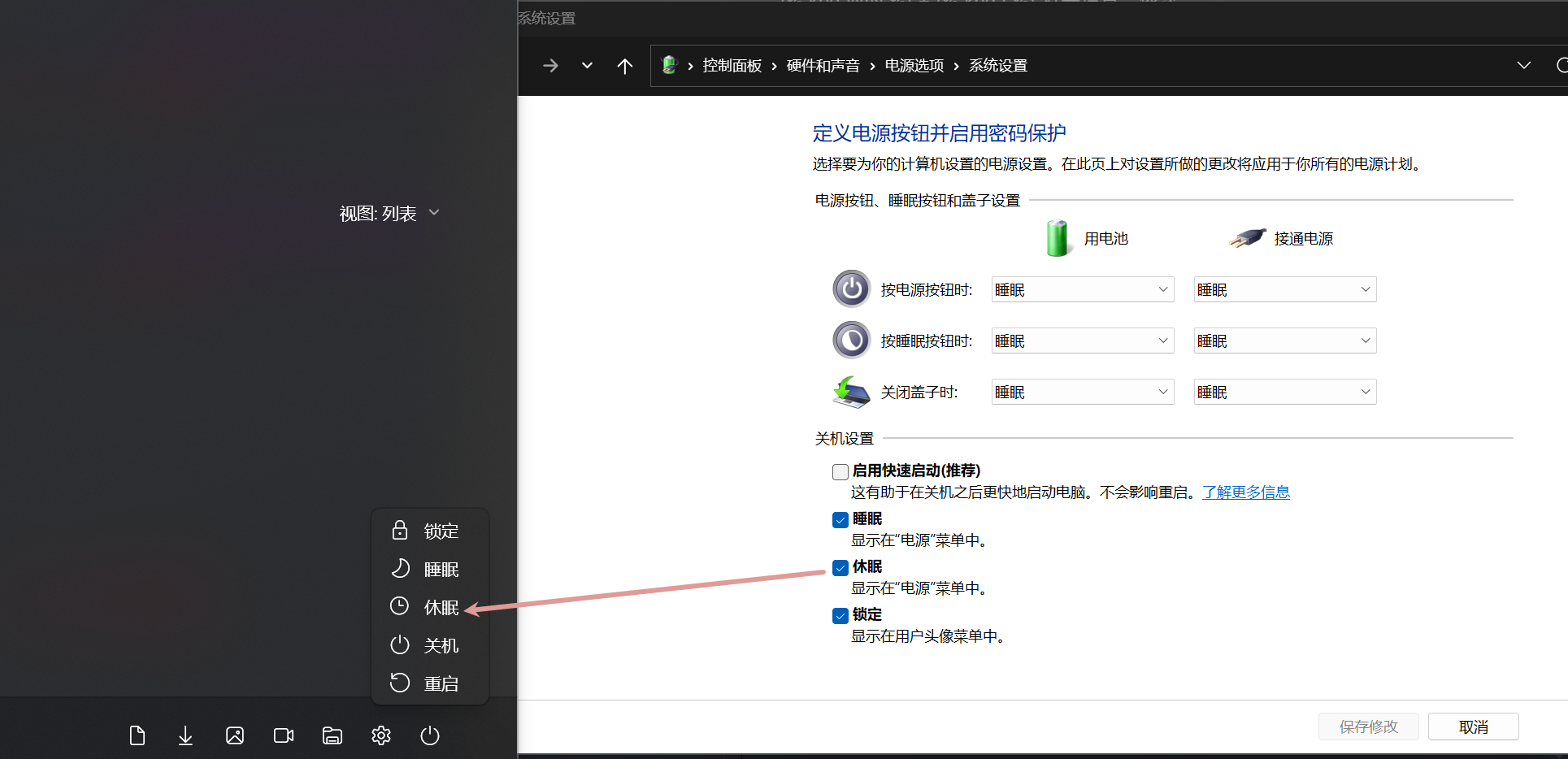
It can help with battery usage, but it also occupies disk space. If you need to reclaim that space or troubleshoot hibernation-related issues, you can turn it off from an elevated terminal with this command:
<table> <thead> <tr> <th>1</th>
<th>powercfg -h off</th>
</tr>
</thead>
<tbody>
<tr>
<td></td>
<td></td>
</tr>
</tbody>
</table>
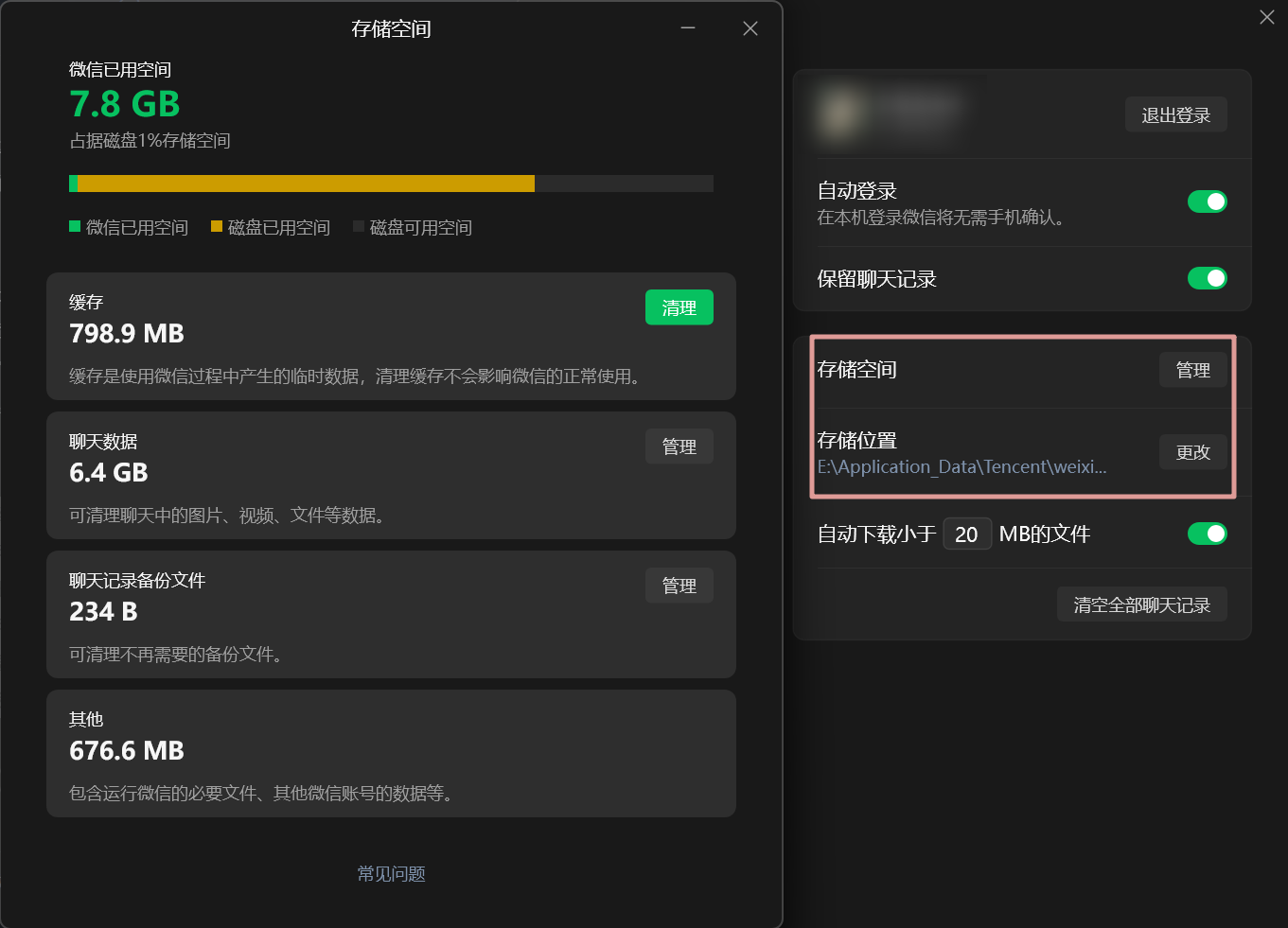
Clear WeChat cache
Inside WeChat settings, under Account and Storage, it is worth moving the storage location off the C: drive if possible. You can also manage stored data there and delete cache files you no longer need, which can free up a meaningful amount of space.
Third-party tools that are actually useful
When the built-in tools are not enough, these are the utilities I tend to rely on.
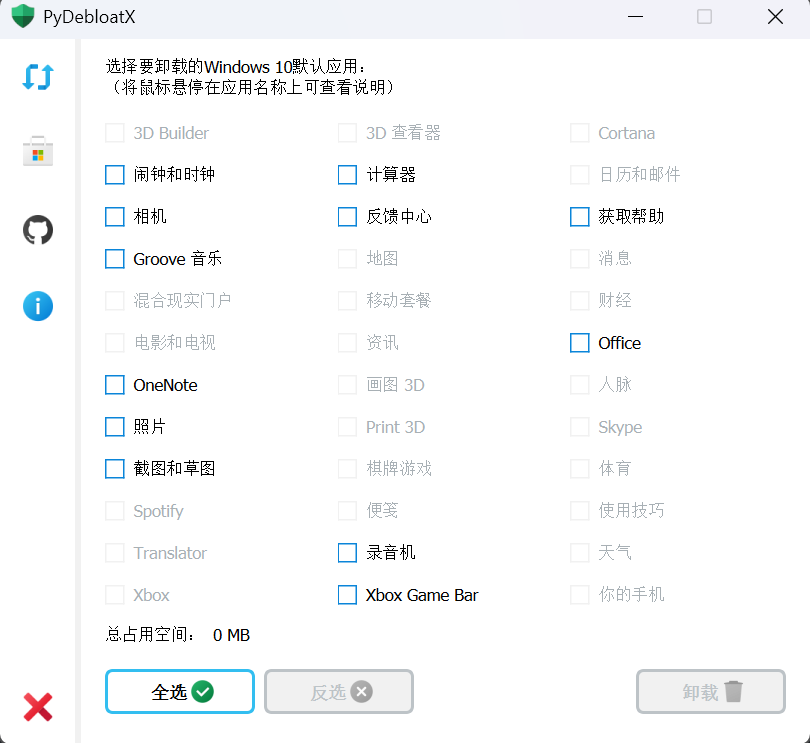
PyDebloatX
A convenient option for removing some of the unnecessary apps bundled with Windows.
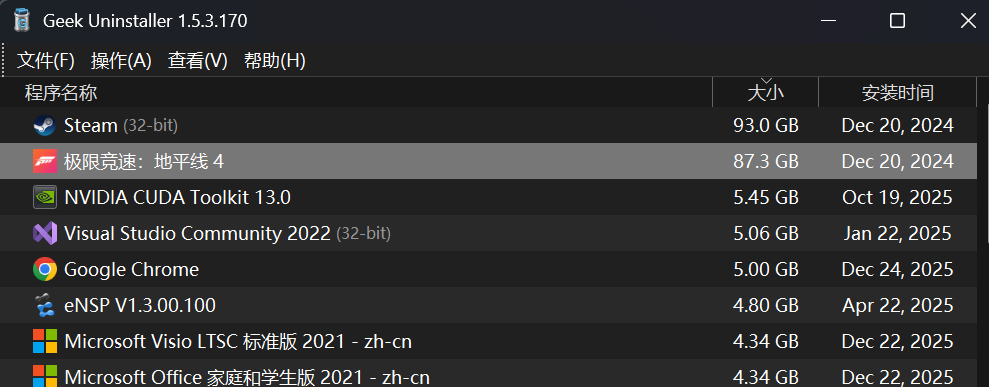
Geek Uninstaller
The standard uninstall process in Control Panel usually removes only the program itself and its installation folder. Registry entries and leftover data often remain behind. Geek Uninstaller can remove software and then scan for residual files, though you do need to look carefully at the file paths before deleting anything so you do not remove the wrong data.
If you want something more advanced for bulk or complex removals, Bulk-Crap-Uninstaller is also a strong open-source choice.
360 Cleanup Pro
A lot of people dislike the broader 360 software ecosystem, but this particular cleanup tool is surprisingly separate from that reputation. It has no bundled installation behavior, is easy to remove, has no ads, and focuses on straightforward cleanup.

Hibernate Enable or Disable
A graphical utility for quickly turning Windows hibernation on or off.
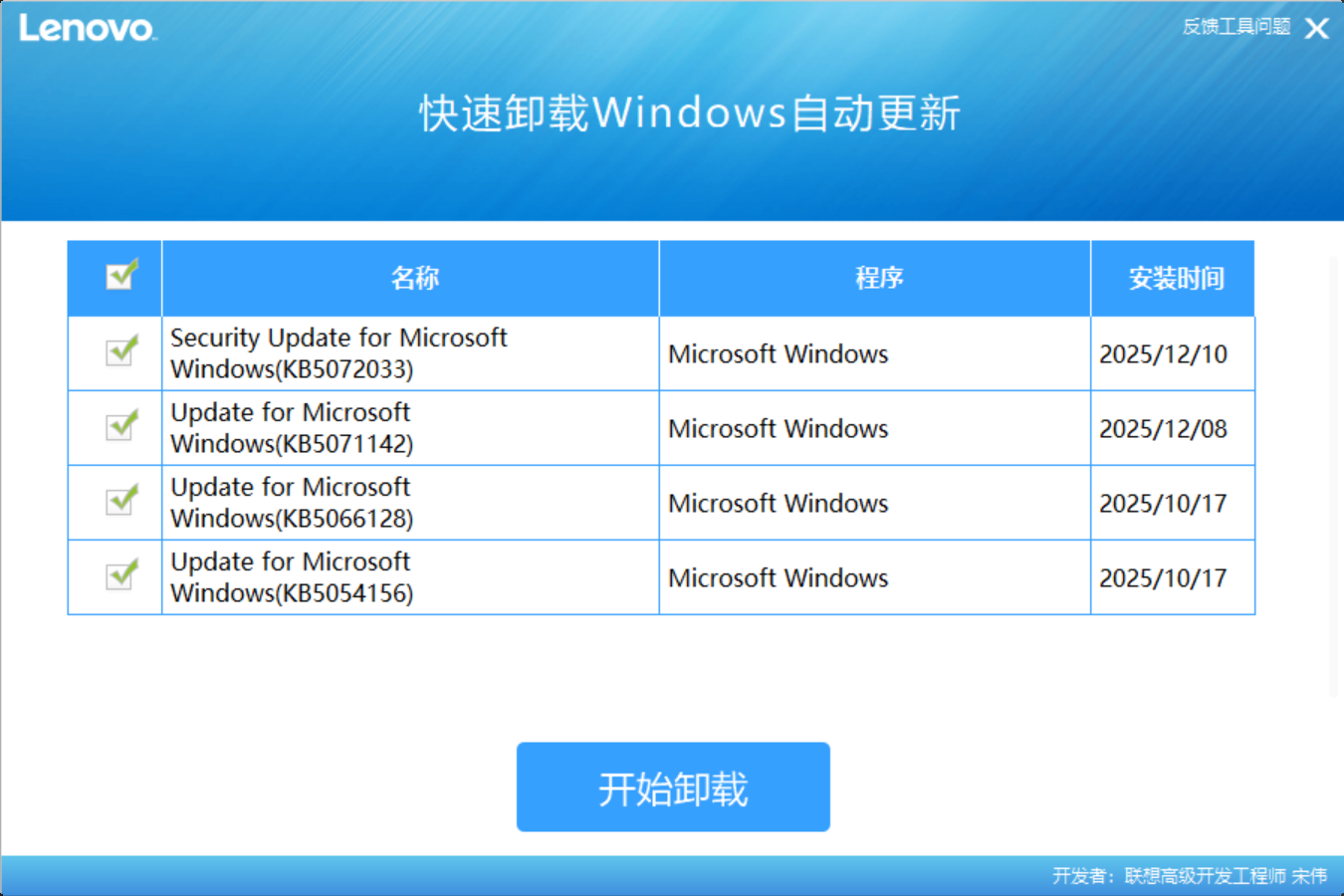
Quick Update Uninstall Tool
A Lenovo-developed utility that can quickly remove installed Windows updates.
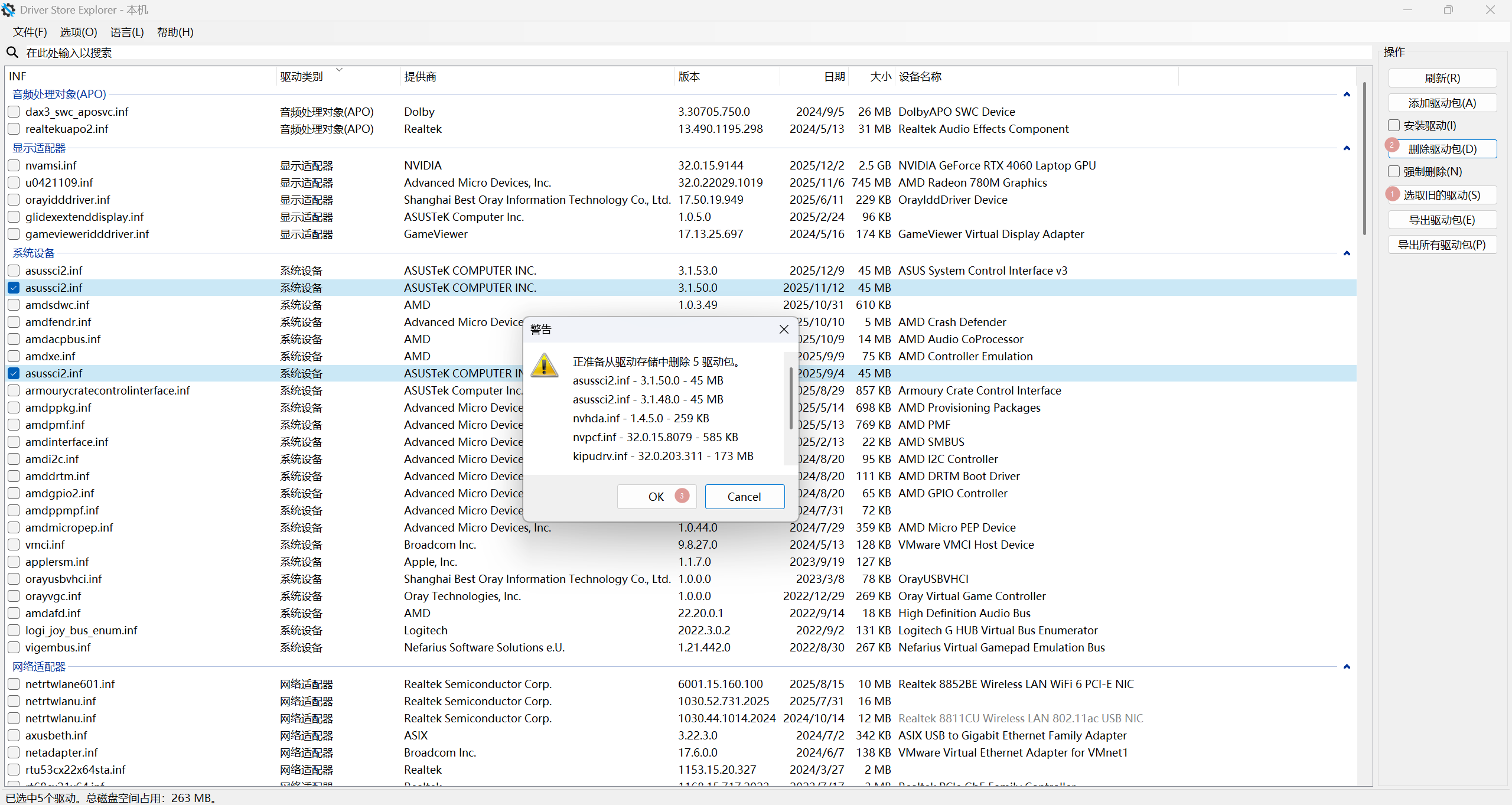
Driver Store Explorer
Useful for safely deleting outdated driver packages.
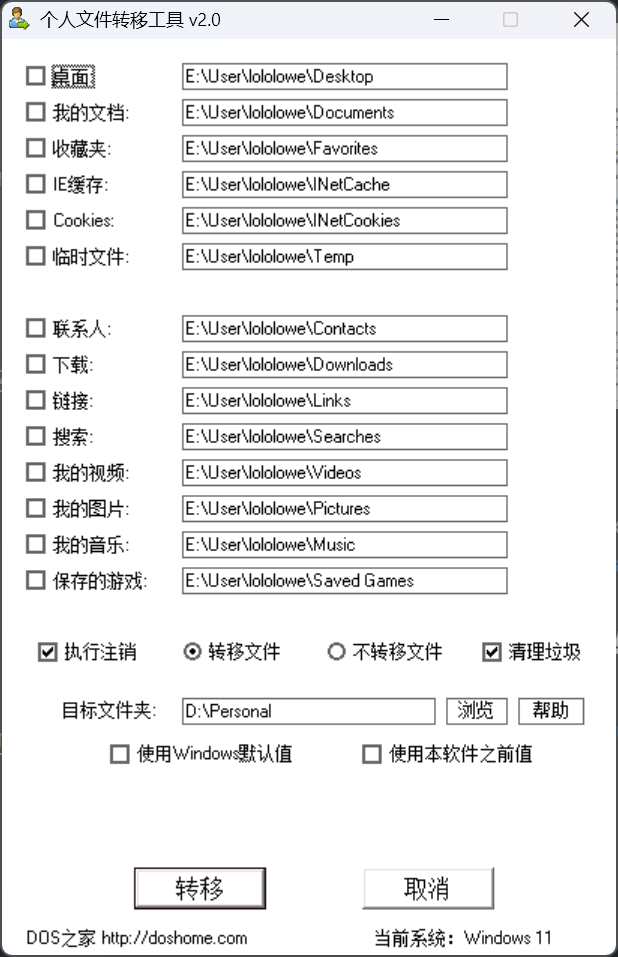
Personal Folder Migration Tool
This is used to move personal folders such as Desktop or Documents away from the default C: drive to another partition, which is often one of the simplest ways to reduce pressure on the system drive.
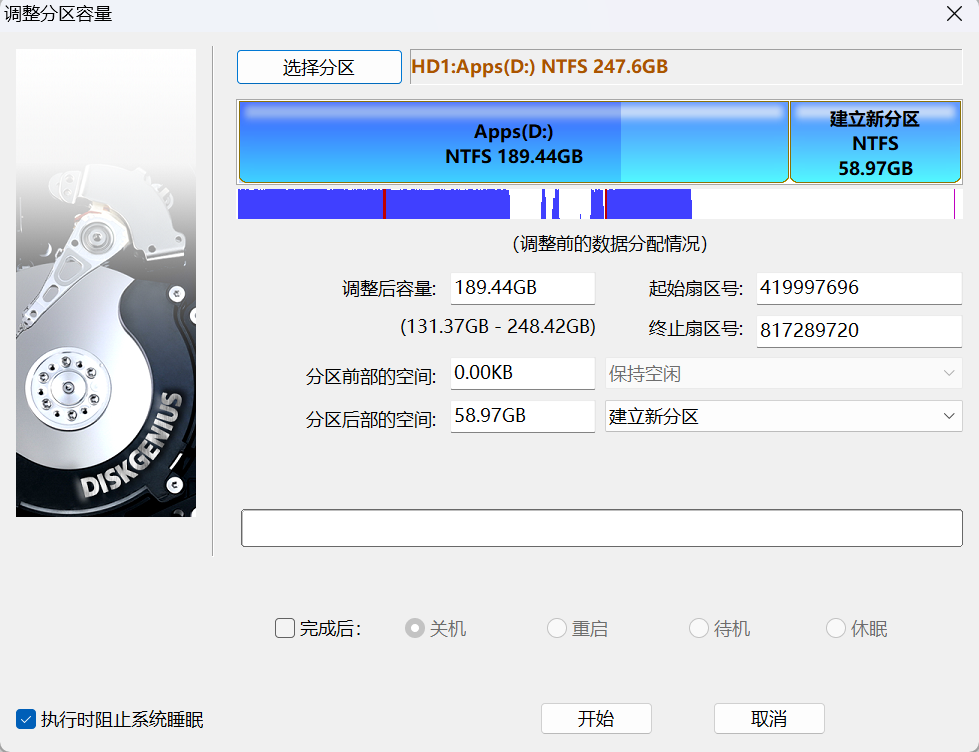
DiskGenius
Windows’ built-in partitioning tools are limited and cannot flexibly reallocate capacity across drives in the way many people need. DiskGenius can resize partitions more conveniently, including expanding the C: drive when space is available elsewhere.
Tools for deeper inspection
WizTree
WizTree is one of the fastest disk space analyzers available. It scans the whole drive and shows exactly which files and folders are taking up the most space. This is especially effective when you need to manually identify oversized folders, old archives, virtual machine images, or forgotten datasets.
If opening the right-click menu causes the program to freeze on your system, WinDirStat is a reasonable alternative.
Everything
Sometimes software that has already been removed still leaves files behind, and those leftovers can continue to consume C: drive space. Everything is excellent for locating those remnants quickly through filename search.
CompactGUI
CompactGUI is a graphical front end for Windows’ built-in NTFS compression. It can save disk space without changing how files are used.
In plain terms, the files remain the same files: the path stays the same, the format stays the same, and they can still be used directly. Windows is simply compressing them underneath the hood rather than turning them into an archive.
HiBit Uninstaller
This is mainly aimed at deep software uninstallation, but the extra cleanup tools included with it are also quite practical.
A few other small utilities worth keeping around
There are also some smaller tools that can be handy depending on the situation:
- memreduct: periodically frees RAM
- Recuva: file recovery
- SoftCnKiller: removes rogue software
The overall idea is simple: do not jump straight into deleting random folders. Start with the built-in Windows cleanup features, remove software properly, inspect what is actually using space, and only then deal with the large files that matter. Most of the time, the biggest gains do not come from clearing tiny caches—they come from finding the one or two directories silently occupying tens of gigabytes.