I ended up digging into this because I was away from home for a while, only had a laptop with me, but still wanted to play games on my desktop remotely. After actually setting it up, I found there are quite a few traps with this kind of streaming, especially if you want it to keep working after the physical display goes dark or disconnects.
The setup here is based on Sunshine + Moonlight, which is already the standard choice people usually recommend for game streaming:
- https://github.com/LizardByte/Sunshine
- https://github.com/moonlight-stream/moonlight-qt
The basic problem is simple: Sunshine captures the current display, encodes it as a video stream, and sends it to Moonlight. That means there has to be a display output for it to capture.
So in practice:
- On a laptop, you usually cannot close the lid and expect streaming to keep working.
- On a desktop, the monitor has to stay on. If the display sleeps or powers off, streaming may stop working entirely.
That is exactly the issue this setup is meant to solve.
The key idea: use a dummy display adapter
If no monitor is connected, many GPUs simply stop outputting an image, which leaves Sunshine with nothing to capture. The easy workaround is to plug in a fake monitor.
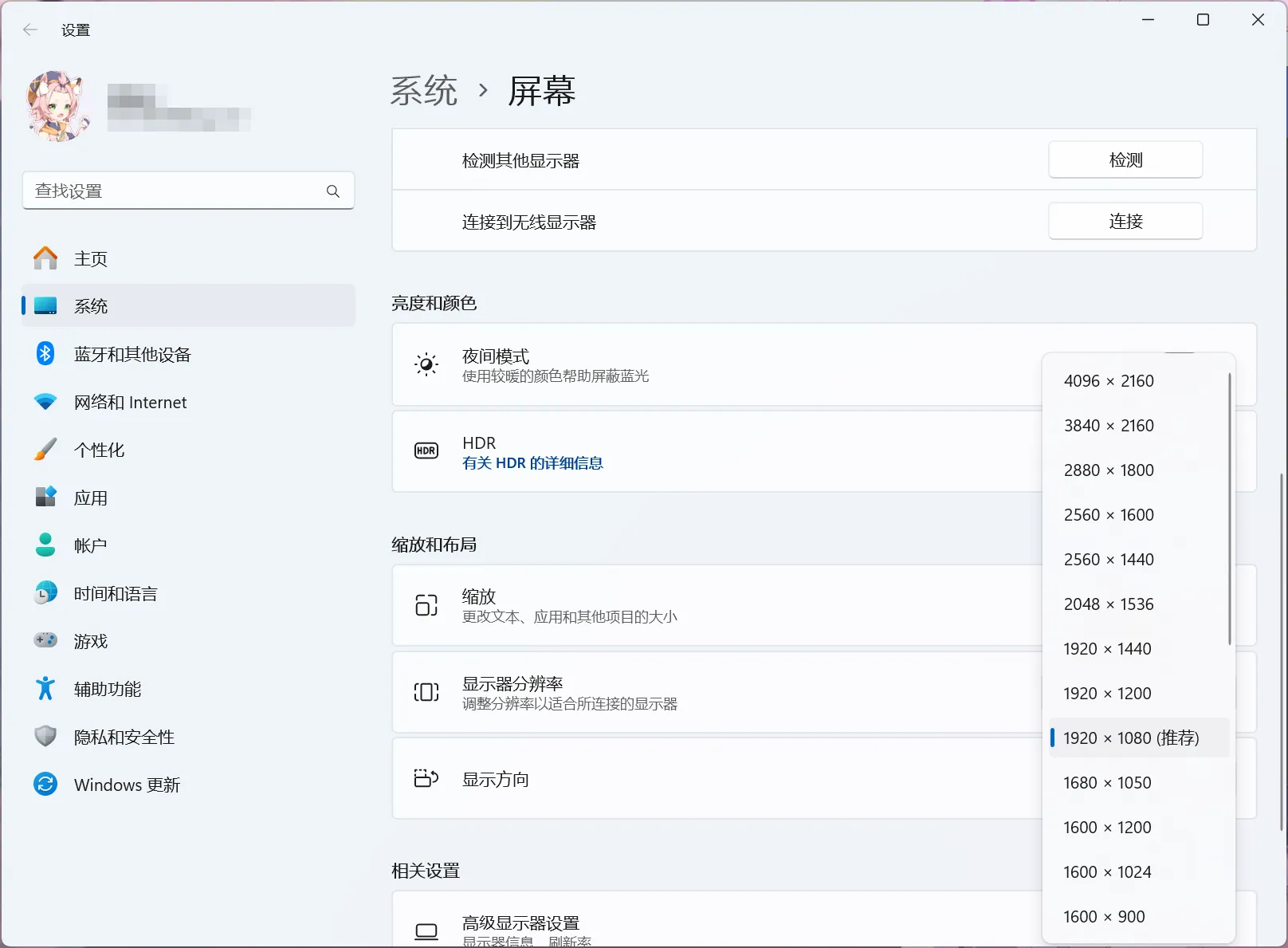
An HDMI dummy plug is cheap and easy to find online. A basic one costs very little, and a 4K model is usually the better pick because it supports a wider range of common resolutions and refresh rates that you can select later in display settings.
The simple case
This is the straightforward setup for:
- desktops that output only through the discrete GPU, or
- laptops running in dGPU-only / MUX switch / direct discrete GPU mode, where the integrated GPU is bypassed.
In this case, just plug the dummy adapter into the HDMI port. The system should detect it as a new display.
To keep that virtual screen from interfering with normal use—for example, windows disappearing onto it—it is best to change the display mode. Open Display settings from the desktop context menu and choose Show only on the real monitor.
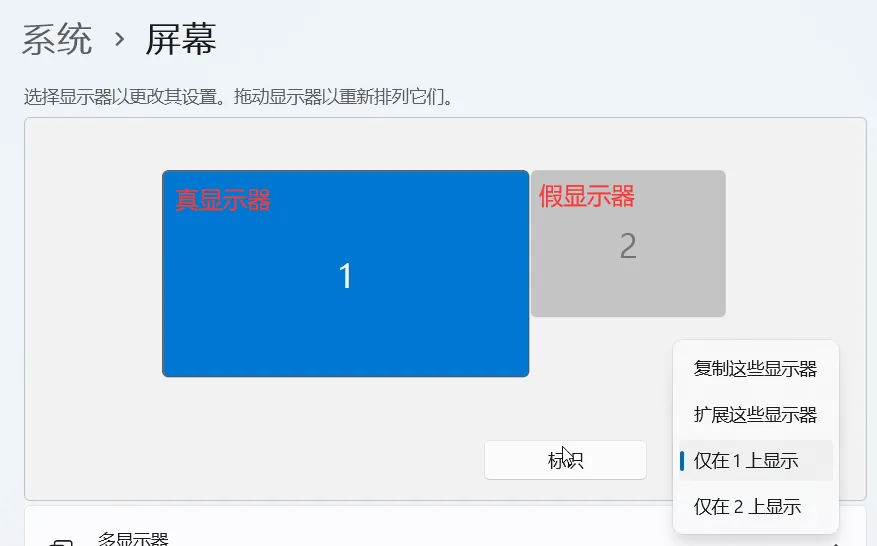
Once that is done, the setup is basically finished.
With the laptop open or the real monitor active, everything behaves normally and the dummy display stays out of the way. Streaming still works. Then, once the lid is closed or the real display disconnects, Windows automatically switches output to the dummy display, and the stream follows it.
One detail worth noting: if you choose Duplicate these displays instead, the stream does not switch over automatically after closing the lid. You have to disconnect and reconnect the stream manually.
If you use multiple monitors, then after closing the lid you also need to disconnect any extra displays so the image is output only to the dummy screen for streaming.
The tricky case: laptops without dGPU direct output
This is where things get messy.
On laptops that are not running in dGPU direct mode, the internal screen and external outputs may be handled by different GPUs.
Typical signal paths look like this:
- Internal laptop display: discrete GPU → integrated GPU → panel
- External display connected to the laptop’s display output: discrete GPU → display
That means after plugging in a dummy adapter, you can end up in this situation:
- the real built-in screen is attached to the integrated GPU
- the dummy display is attached to the discrete GPU
So the two displays are effectively on different adapters.
The problem is that in this situation, Sunshine tends to auto-select the integrated GPU. Then when the lid is closed, it looks for a screen on the iGPU side, finds nothing, and streaming fails.
The fix is to force Sunshine to capture from the discrete GPU and from the dummy display specifically.
Step 1: plug in the dummy adapter
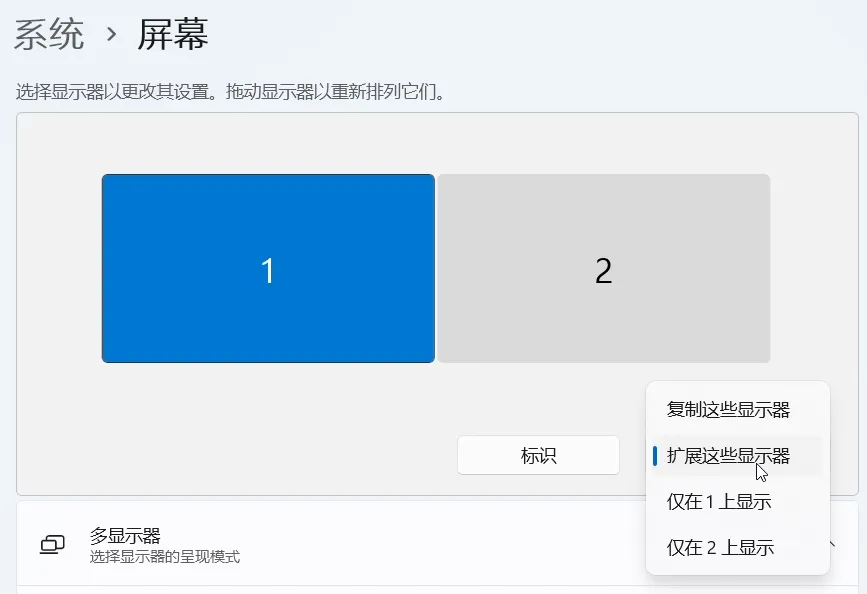
Then set Windows display mode to Extend these displays. This matters because the detection tool used in the next step needs all displays to be active.
Step 2: identify the GPU and output names
Go to Sunshine’s installation folder and find tools\dxgi-info.exe. By default it is here:
C:\Program Files\Sunshine\tools\dxgi-info.exe
Open a terminal with Win + R, type cmd, and run this command exactly as shown:
"C:\Program Files\Sunshine\tools\dxgi-info.exe"
For example, on one machine the output looks like this:
====== ADAPTER =====
Device Name      : Intel(R) UHD Graphics 630
Device Vendor ID : 0x00008086
Device Device ID : 0x00003E9B
Device Video Mem : 128 MiB
Device Sys Mem   : 0 MiB
Share Sys Mem    : 16319 MiB

    ====== OUTPUT ======
    Output Name       : \\.\DISPLAY1
    AttachedToDesktop : yes
    Resolution        : 1920x1080

====== ADAPTER =====
Device Name      : NVIDIA GeForce GTX 1650
Device Vendor ID : 0x000010DE
Device Device ID : 0x00001F91
Device Video Mem : 3935 MiB
Device Sys Mem   : 0 MiB
Share Sys Mem    : 16319 MiB

    ====== OUTPUT ======
    Output Name       : \\.\DISPLAY4
    AttachedToDesktop : yes
    Resolution        : 1920x1080

====== ADAPTER =====
Device Name      : Microsoft Basic Render Driver
Device Vendor ID : 0x00001414
Device Device ID : 0x0000008C
Device Video Mem : 0 MiB
Device Sys Mem   : 0 MiB
Share Sys Mem    : 16319 MiB

    ====== OUTPUT ======
In this example there are 3 ADAPTER entries and 2 OUTPUT entries:
Intel(R) UHD Graphics 630: integrated GPU\\.\DISPLAY1: built-in laptop screenNVIDIA GeForce GTX 1650: discrete GPU\\.\DISPLAY4: external display, which here is the dummy adapterMicrosoft Basic Render Driver: not relevant here
What you need to note down is:
- the device name of the discrete GPU
- the output name of the dummy display
After that, you can switch Windows display mode back to Show only on the real monitor.
Step 3: set Sunshine manually
Open the Sunshine WebUI, go to Configuration, then the Audio/Video tab.
Fill in:
- Adapter Name: your discrete GPU device name
- Output Name: the dummy display output name
Using the example above, that would mean entering the NVIDIA GPU name and \\.\DISPLAY4.
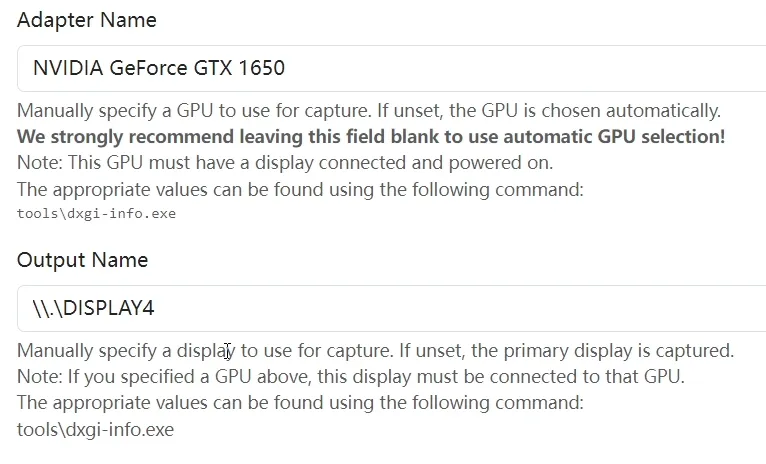
Then click Save and Apply.
At this point, one thing may look wrong but is actually expected: streaming will stop working while the laptop screen is still on. That happens because Sunshine has now been forced to capture only from the dummy display, and while the real screen is active, that dummy output may not be carrying the image yet.
Once the lid is closed and the built-in display disconnects, the dummy display becomes active, and the stream can connect normally.
A Sunshine issue that gets in the way
In theory, the above should be enough.
In practice, there is still a problem—at least with Sunshine 0.21.0.
After testing, the issue seems to be that Sunshine does not automatically refresh the encoder after the display changes.
If Sunshine starts while the laptop is still open, it checks for \\.\DISPLAY4, does not find a usable output there, and stops working. Even if you close the lid afterward and \\.\DISPLAY4 becomes available, Sunshine does not refresh itself and still fails.
The workaround is to make sure Sunshine starts after the lid is closed, or at least during the moment the dummy display is already active.
That means you need to either:
- launch Sunshine and immediately close the lid, or
- restart Sunshine and immediately close the lid
The goal is simply to have \\.\DISPLAY4 active at the moment Sunshine initializes.
This really looks like a bug rather than expected behavior, and an issue has already been filed for it:
https://github.com/LizardByte/Sunshine/issues/2078#issuecomment-1919548775