What this failure looks like
This kind of Microsoft Store app corruption can be surprisingly nasty, because it often does not stay limited to a single app.
The issue first showed up after installing Lottie Viewer from Microsoft Corporation. After uninstalling it with Geek, the uninstall process appeared to finish and leftovers were supposedly cleaned up, but the app still remained in the Start menu. At that point it was already unusable: it could not be opened, and it was effectively stuck in the system.
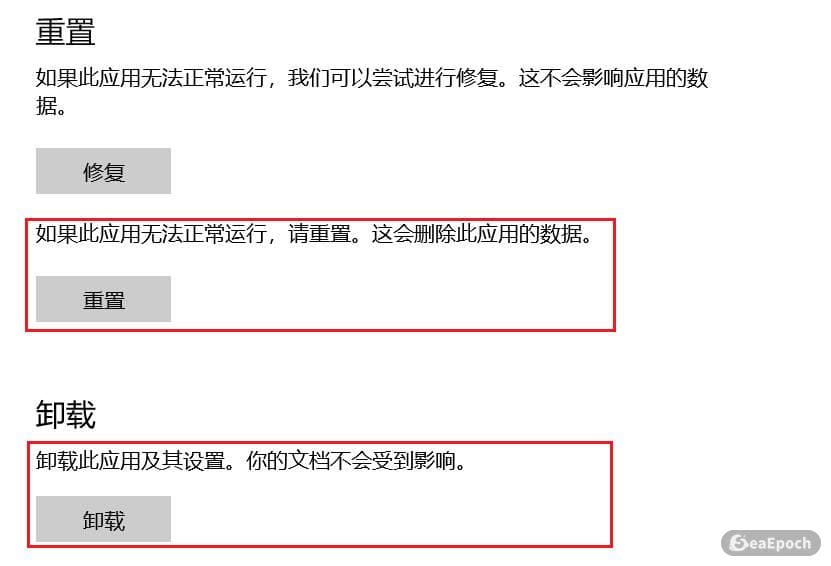
At first, it looked minor. The obvious next step was to try Windows’ built-in Reset and Uninstall options for the app, but neither worked properly. Reinstalling the app did not restore it either. Instead, the Store showed both Update and Install at the same time, and installing it again created an additional Lottie Viewer entry in the app list. That is usually the moment you realize the app registration itself is seriously broken.
Some discussions online point to an IsInbox value being set to 1, but in this case checking the database with DB Browser (SQLite) showed that the app’s IsInbox value was actually 0. There are also many scattered reports across Microsoft forums, GitHub issues, and personal blogs, yet most of them stop short of providing a solution that actually works.
The worst part is that the problem may begin to spread. After a few days, the corruption started affecting other Microsoft Store apps as well, beginning with Windows Terminal. More Store apps gradually became unusable: they could not open, could not be uninstalled, and could not be reset. Once it reaches that stage, ignoring it is no longer realistic.
Typical symptoms
The main symptoms are:
- App cannot be uninstalled (error code: 0x80073CFA)
- App cannot be reset (Windows reports an error and asks you to try again later)
- App cannot be opened (sometimes the app remains listed even after uninstall attempts, but clicking it does nothing)
When the problem starts affecting other apps, you may also notice:
- Other app entries becoming grayed out and re-downloading themselves
- Apps randomly becoming unusable or impossible to uninstall
- Reinstallation attempts failing with error code: 0x80073CF9
A practical way to recover the Store app system
The steps below focus on the parts that most often break in this situation: BITS, Store registration, network components, and system files.
Check whether BITS is working
BITS stands for Background Intelligent Transfer Service, and Microsoft Store depends on it more than many people realize.
- Press Win + R, type services.msc, and press Enter.
- In the Services list, find Background Intelligent Transfer Service. - If it is not running, right-click it and choose Start. - If it is already running, right-click it and choose Restart.
- Make sure its startup type is set correctly: - Right-click the service and open Properties. - Under the General tab, set Startup type to Automatic (Delayed Start), then click OK.

Reset the BITS service configuration
If BITS exists but is misconfigured, reset it from an elevated Command Prompt.
- Open Command Prompt (CMD) as administrator.
- Run the following commands one by one:
1 2 3
sc config BITS start= auto net stop BITS net start BITS
- Confirm that the service starts successfully.
Repair system files and Windows components
If BITS is acting strangely, damaged system files or broken update components may be part of the cause.
Run a system file scan:
1
sfc /scannow
Then run DISM to repair the Windows image and update components:
1
DISM /Online /Cleanup-Image /RestoreHealth
These two steps are worth doing even if the system seems otherwise normal.
Reset Microsoft Store components
Next, clear the Store cache and re-register the Store package.
- Press Win + R, enter the following command, and press Enter:
1
wsreset.exe
- Then open PowerShell as administrator and run:
1
Get-AppxPackage -allusers Microsoft.WindowsStore | Foreach {Add-AppxPackage -DisableDevelopmentMode -Register "$($_.InstallLocation)\AppXManifest.xml"}
This step can fix cases where the Store itself is no longer handling app registration correctly.
Reset network settings
Because BITS also depends on a healthy network stack, it is a good idea to reset related network components.
Run the following commands in Command Prompt:
1 2
netsh winsock reset netsh int ip reset
Then restart the computer so the changes actually take effect. This reboot is important and should not be skipped.
Run the Windows Store Apps troubleshooter
Windows still includes a built-in troubleshooter for Store apps, and in this situation it is worth running.
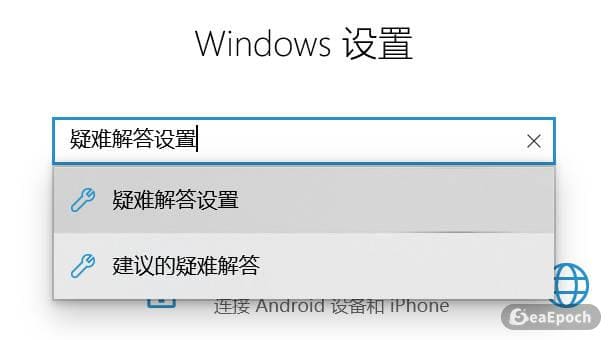
- Open Settings, search for Troubleshoot settings, and open it.
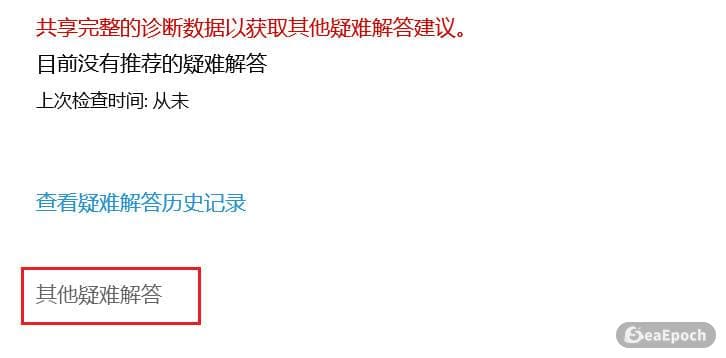
- On the Troubleshoot page, go to Other troubleshooters.
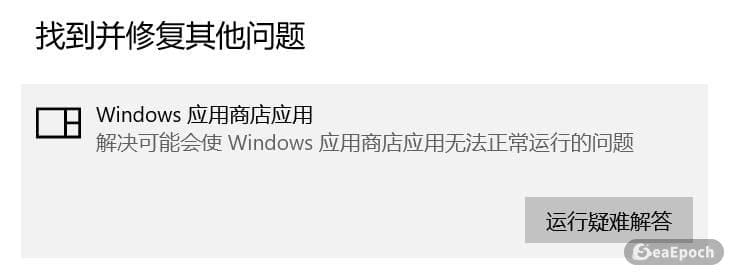
- Find Windows Store Apps and click Run.
How to tell whether the issue is actually fixed
After completing the steps above, test one of the broken apps using the system’s built-in tools.
A reliable sign of recovery is this:
- The app can be reset successfully from Windows settings
- After that, it can be uninstalled normally using the system uninstall option
- Once removed cleanly, it can be installed again without the previous errors
If reset works again, that usually means the damaged Store app state has been repaired.