Putting together a computer usually involves two separate jobs: assembling the hardware, and installing the operating system.
The hardware side varies too much from person to person to be very useful as a general guide. CPU, motherboard, memory, graphics card, storage, cooling, and power supply all depend on what you actually need the machine to do. Once all of that is installed in the case and the system can power on and enter BIOS normally, the next step is the part that matters just as much in daily use: installing the OS.
This is the part I especially want to talk about, because if you take the wrong path here, the overall experience afterward can be noticeably worse.
This is only a very simple personal workflow, not something guaranteed to fit every situation.
Making a bootable USB
There are many ways to install a system. In the past, optical drives were common and boxed operating systems came on discs. Now the usual approach is to install from a bootable USB drive.
There are a lot of tools for making one, but I personally only recommend these two:
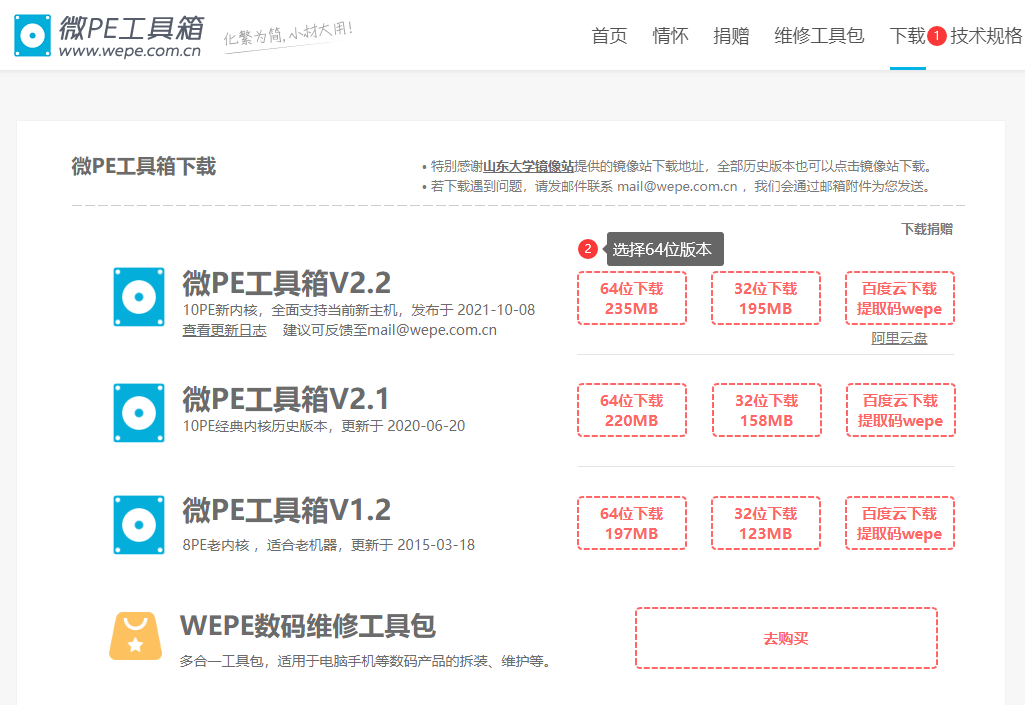
- WePE (https://www.wepe.com.cn/)
- UQiTong (https://www.itsk.com/)
Be careful with the URLs—there are plenty of fake sites around.
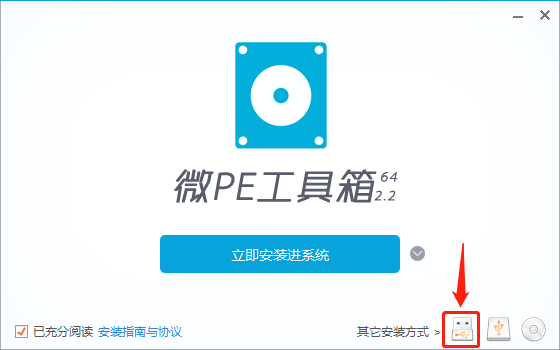
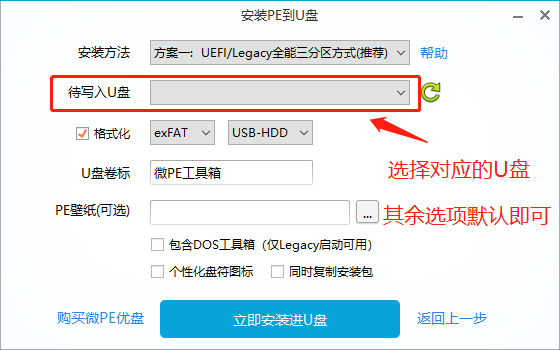
I personally prefer WePE because it is clean, lightweight, and still fully capable. It handles hardware inspection, disk partitioning, and several common installation methods without unnecessary clutter.
I suggest preparing an empty 16GB USB drive, ideally USB 3.0. That gives you enough space not only for the boot environment, but also for a few commonly used system images and tools, such as both Windows 7 and Windows 10 images.
Downloading the system image
After the boot drive is ready, the next step is putting a system image on it. This is also where a lot of people get tripped up.
Search results for Windows images are full of mixed-quality downloads. If you do not already know what you are looking for, it is easy to end up with an image bundled with junk software, or worse, something malicious. The two places I often use are:
- MSDN, I Tell You (https://msdn.itellyou.cn/) — original and clean
- iWin10 (https://iwin10.net/) — streamlined and clean
Again, double-check the URLs, because fake copies are common.
The first is a very well-known archive of original software information and download references, and it is a reliable place to find untouched system and software images. The second is also fairly well known and happens to be my personal preference for Windows images. Their approach is to streamline the original image moderately while keeping the system stable.
For their Windows 10 builds, there are two versions worth noting: Windows 10 Pro and Windows 10 LTSC. Both are based on the official image and trimmed to some extent, removing features that many ordinary users hardly ever touch, such as Mail, Weather, Calendar, Maps, and People.
Windows 10 LTSC is the Long-Term Servicing Channel edition. It is designed for users who need long support cycles—often five or even ten years—and want to avoid frequent operating system changes during that period. Unlike regular Windows 10 editions, LTSC is not pushed through the same forced update rhythm. Microsoft mainly offers it for special use cases where stability matters more than feature churn, such as certain industrial or dedicated work environments.
So which one should you choose? My own rule is simple: Windows 10 Pro for personal PCs, Windows 10 LTSC for office machines.
The reason is straightforward. A personal computer is usually used for a mix of tasks: documents, games, video playback, and general day-to-day use. A properly streamlined Windows 10 Pro still covers those needs well.
LTSC is different. In the name of stability, more components are removed, so it is generally more stripped down than Pro. That can be a downside for gaming or certain other tasks that may rely on components no longer included. But for office use, that simplicity becomes an advantage: it saves resources on weaker hardware and reduces the chances of random trouble caused by unnecessary features.
I also strongly suggest installing a 64-bit system whenever possible. A 32-bit system only supports up to 4GB of memory. Even if the machine currently has only 4GB, future upgrades are still worth considering, and it is better to avoid reinstalling the whole system later just because of that limitation.
Once the boot drive and image are ready, you can enter BIOS, set the USB drive as the first boot device, and start the WinPE environment to partition the disk.
How I handle disk partitioning
For my own machines, I usually keep a full 512GB SSD as the C drive, paired with a 1TB hard drive as D. I do not like splitting one drive into too many partitions because it makes storage less flexible. Since my C drive is an SSD, I also install software on C so I can make better use of SSD read and write speeds. Programs open and close much faster that way.
For office computers, I usually buy a 512GB SSD and divide it into only two partitions: around 120–150GB for C, and the rest for D.
Why only two? Because in most cases, more partitions do not really help.
A lot of people think extra drive letters make files easier to organize, but the better way to organize files is with folders, not by splitting everything into C, D, E, and F. The more partitions you create, the more scattered your free space becomes, which usually means lower space efficiency overall.
After partitioning is done, the system itself can be installed. Once initialization finishes, the next step is drivers and basic setup.
A few habits after the system is installed
At this point, the operating system is basically in place. What follows are a few things I usually do right afterward.
Driver installation
For drivers, I often use 360 Driver Master. It is one of the more decent tools of its kind, and in most cases it installs the majority of hardware drivers without much trouble.
That said, downloading drivers directly from the hardware manufacturer’s official website is still the safer option.
I personally do not recommend using tools like Driver Life or Driver Genius, because after trying them multiple times, I found that they tend to cause one problem or another during driver installation.
Moving the Documents folder
The Documents folder is where many applications store cache data or game saves by default. Apps like QQ and WeChat also put account data and cached files there. On many computers, an overfilled C drive is very often the result of WeChat cache growing out of control.
Because of that, before installing software, I often move the Documents folder to the D drive—mainly on office PCs. The reason is simple: the C partition is usually not very large, and the person using the computer may not clean caches regularly. On my own machines, I usually do not move it, since my C drive is large enough and I clean things up from time to time.
The general process is:
- Find the Documents folder, usually visible under This PC.
- Create a new folder named Documents on the D drive.
- Right-click Documents, open Properties, go to Location, and choose Move.
- Select the new Documents folder on D and confirm.
Of course, moving the folder does not magically reduce how much space the files inside it use. It only changes where that space is consumed, so regular cleanup is still necessary.
Installing software
The first category I usually think about is antivirus or security software. Browsing habits differ from person to person, so having at least some protection still makes sense. The two I would recommend are:
- Huorong Security — quiet and unobtrusive
- 360 Total Security (Speed Edition) — strong antivirus capability
If we are talking strictly about detection and antivirus strength, 360 is widely considered very capable. Its main problem is the number of pop-ups. Huorong is more modest in raw protection, but it is lightweight and much less annoying.
So my rough advice is this: if you trust your own browsing habits and can recognize shady or malicious sites, Huorong is a good fit. If not, 360 may be the safer choice. I personally use Huorong because I am fairly confident in spotting junk sites and dealing with basic issues on my own.
For everything else, I strongly prefer downloading software directly from the official website whenever possible. That is still the safest route. Just make sure you are actually on the real site and not an imitation.
Browser choice
I strongly recommend Microsoft Edge.
Compared with Google Chrome, Edge feels a bit lighter to me, which makes it friendlier on computers with limited memory. I also find it better aligned with the browsing habits of many Chinese users, and overall it is simply more convenient to use.
The most practical advantage is extension installation. Opening the Edge add-on store and installing what you need is straightforward. A few extensions I like are:
- Adblock Plus — a free ad blocker that removes most ads and keeps pages clean
- Don't Close Window With Last Tab — exactly what the name says; when you close the final tab, it opens another one so the browser window stays alive
- Tampermonkey — the well-known userscript extension for adding custom scripts and bypassing certain limitations
- Infinity New Tab — lets you customize the new tab page to better match your own workflow
My usual setup for an office PC
If I am installing a system for an office computer, my typical process looks like this: I make a 16GB bootable USB with WePE, put a 64-bit Windows 10 LTSC image on it, and install the system from there. After that, I use 360 Driver Master to install drivers, move Documents to the D drive, install Huorong Security, set up Edge as the main browser, add the necessary extensions, and then slowly install the rest of the software one by one until everything is configured properly.

That is about it for my usual workflow.